
Before you start
You will need:
- Access to where your website is hosted, or to its DNS if the host is not on our list.
- The website’s address, for example
yourcompany.com. Use the main address:example.comworks,work.example.comdoesn’t yet. - About five minutes.
Where the rule comes from
Section titled “Where the rule comes from”The exact rule to paste comes from the SimplifyLocal app, not from these docs. Sign in and open Setup → Connect your website. The wizard has four steps: Web address, Hosting, Setup, Check.
- Web address: type the site’s address, with no
http://and no path. - Hosting: the app tries to detect the host and pre-selects it. Confirm or change it.
- Setup: the app shows the rule for that host, with the business’s values already filled in, plus a Copy setup snippet button and step-by-step directions for that host’s dashboard.
- Check: press I added it. Check now. The app reaches out to the site and reports one of the outcomes listed in Verify the connection.
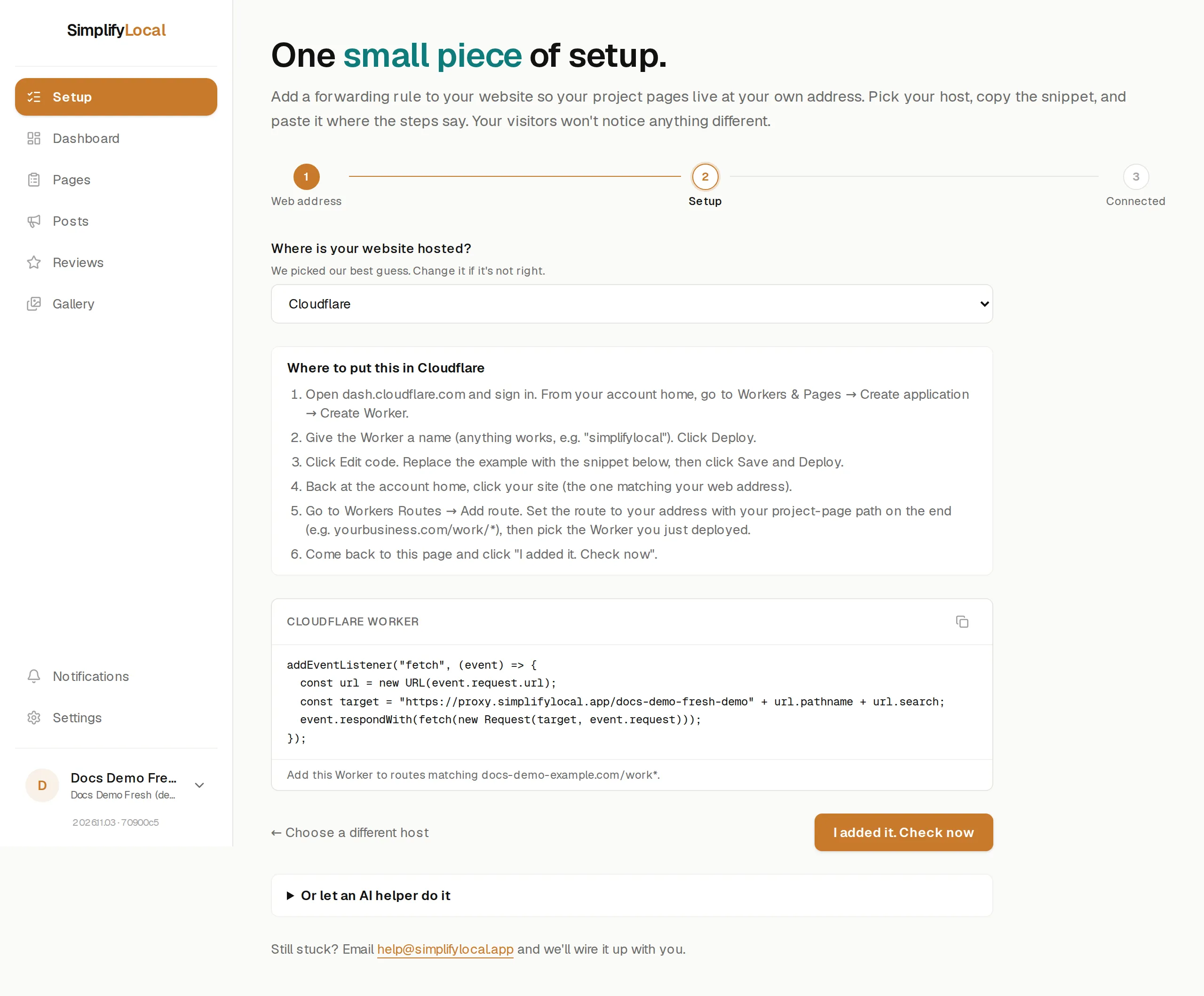
The pages in this section show where the rule goes on each host and what each check result means. They show the shape of the rule with placeholders; the app fills the placeholders in.
Where the pages end up
Section titled “Where the pages end up”Project pages live under /work on the site’s own address, for example https://yourcompany.com/work/house-washing-marietta. That path is fixed; see Choose your paths.
- Cloudflare
- Netlify
- Vercel
- Apache
- Nginx
- WordPress and site builders for hosts without a snippet of their own.
If the host isn’t listed, pick Other (my host isn’t listed) in the wizard. It gives you a prompt you can paste into your host’s AI helper, and an email link to help@simplifylocal.app with the rule attached.