
Review and approve posts
The Posts page is where posts drafted from your jobs wait for you. Today it holds Google posts; Facebook and Instagram posts join it as that posting rolls out.
Everyone on the team can see the page. Approving, editing and archiving need the admin or editor role (see Roles).
What you see
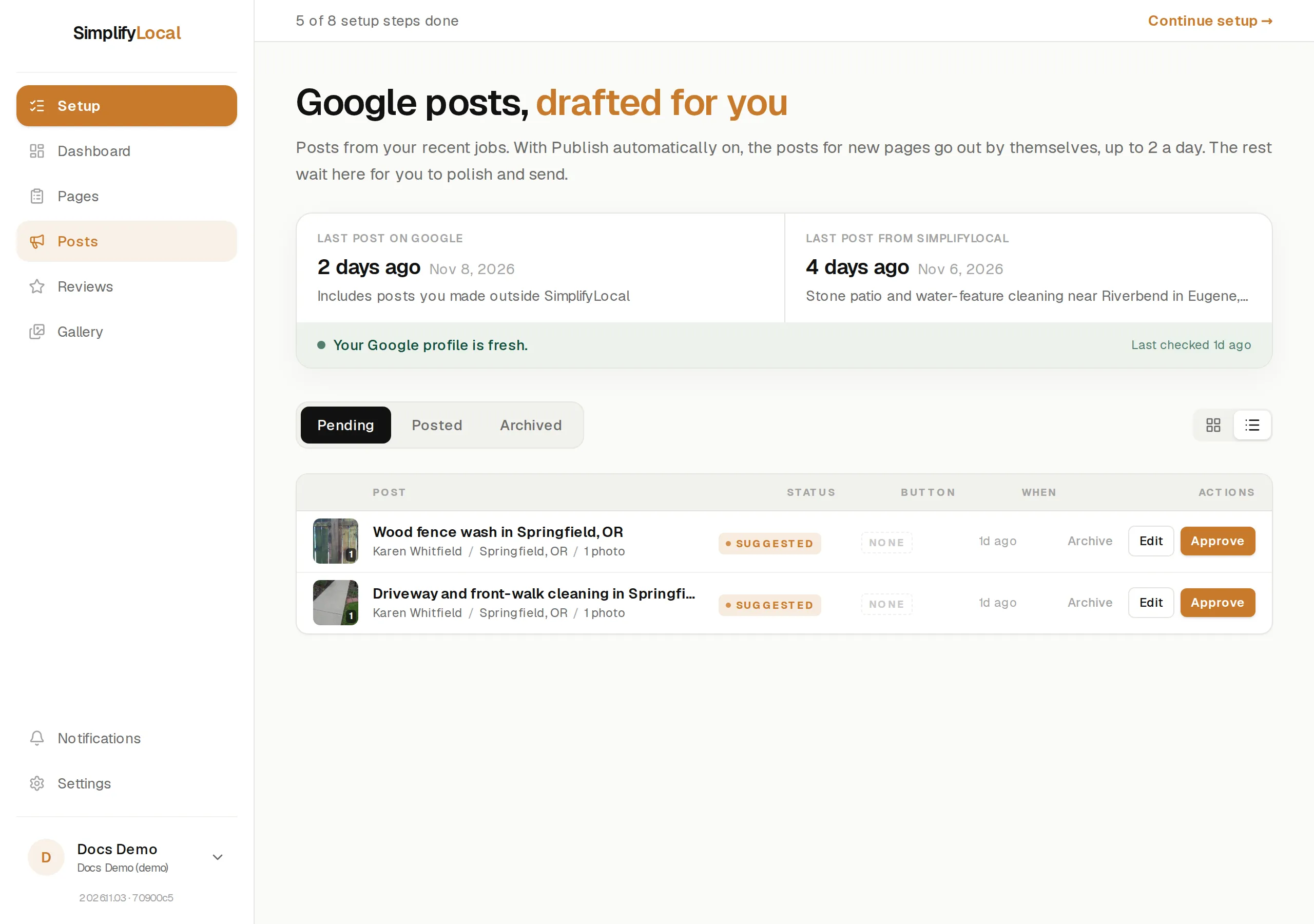
Section titled “What you see”- Last post on Google and Last post from SimplifyLocal, side by side, so you can tell at a glance whether your profile is going quiet. The strip under them says so plainly: “Your Google profile is fresh”, “It’s been a couple of weeks since your last Google post”, or “Your Google profile hasn’t seen a post in over a month”.
- A Last checked line. We check your newest pages every morning. On a morning when none fit, the page says “We checked your newest pages this morning. None were a fit for a post just yet, but we’ll keep looking.”
- Three tabs: Pending, Posted and Archived.
Each pending post shows its photos, the headline, the button it will carry, and a pill: Suggested (as we drafted it), Edited (you’ve changed it) or Needs cover (no photo picked yet).
Posts that go out by themselves
Section titled “Posts that go out by themselves”With Publish automatically on (under Settings → General), the post for a page that went live by itself goes out without an approval, up to 2 a day. It shows on the Posted tab tagged Posted automatically. Everything else waits on Pending for you.
With the setting off, every post waits for you to press Approve.
Edit a post
Section titled “Edit a post”Press Edit on a pending post. You can change:
- Headline. Keep it under 80 characters; longer headlines get clipped on phones.
- Post copy, up to 1,500 characters. Google shows roughly the first 150 before a “Read more” link, so put the service and the town first.
- Button: Book, Call now, Learn more or No button. Book and Learn more need a web address; Call now uses the phone number on your Google listing.
- Photos. Pick up to 10. Google posts show one photo, so the first one you pick is the cover. The rest stay saved on the draft.
A Preview pane shows roughly how the post will look on Google. Press Save to keep your changes without posting.
Approve a post
Section titled “Approve a post”Press Approve, then Yes, post it. The post goes to your Google Business Profile and moves to the Posted tab, with a View on Google link. A post that is already on Google is edited there, not in SimplifyLocal.
If the draft has no photo, the app asks you to Pick a photo or Post without a photo. Posts with a photo get seen more on Google.
If Google takes too long to answer, the app tells you to check your Google Business Profile before approving again, so the same post doesn’t go up twice.
Archive a post
Section titled “Archive a post”Press Archive, then Yes, archive it. The post moves to the Archived tab, where Restore brings it back to Pending.
The daily limit
Section titled “The daily limit”Two posts a day is the recommended ceiling and the most the automatic posting will send. You can approve more by hand, up to 5 a day; the app warns you at each step. See Connect Google Business Profile.