
How a job becomes a page
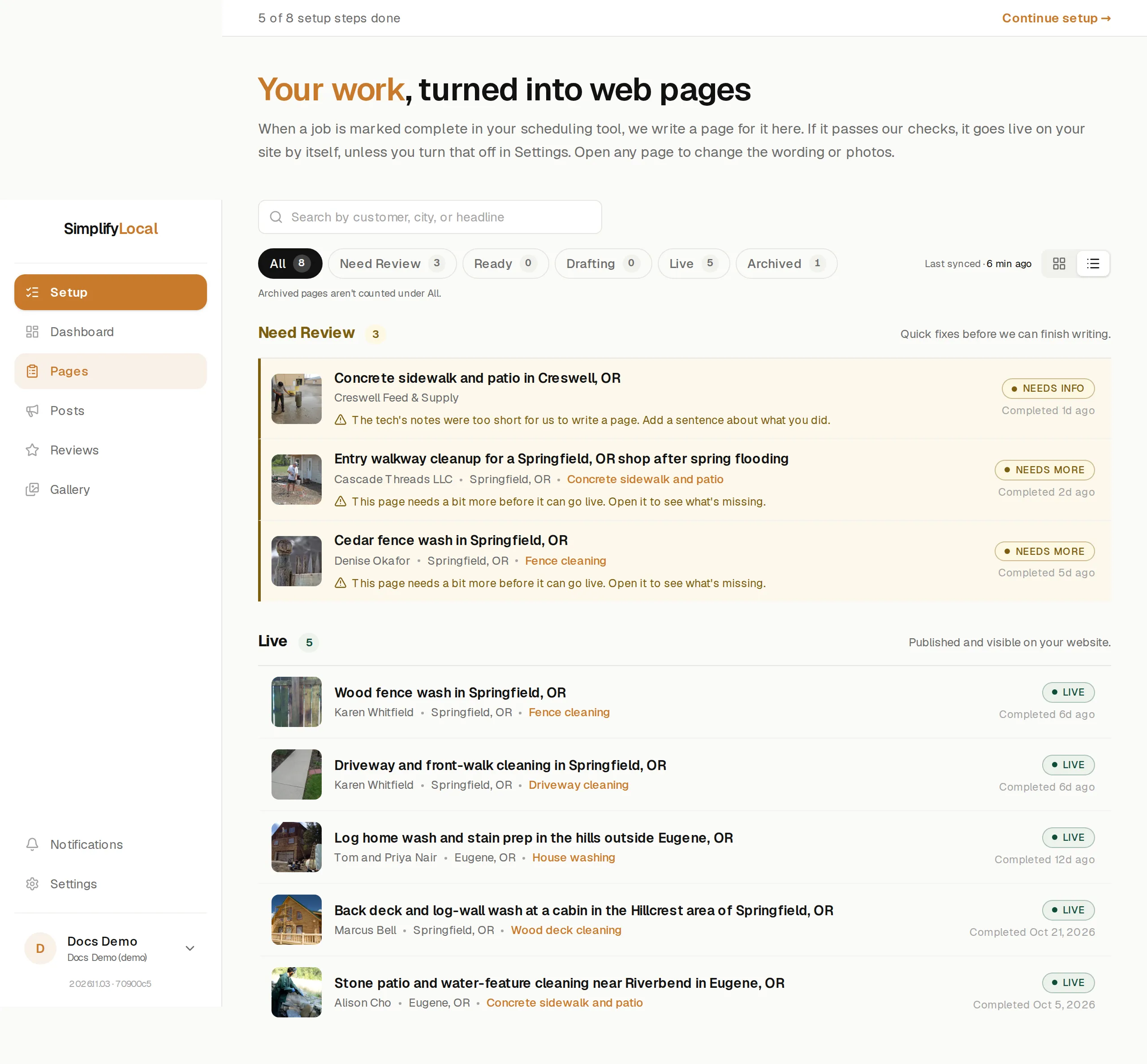
When a job is marked complete in your scheduling tool, we write a page for it. If it passes our checks, it goes live on your site by itself, unless you turn that off in Settings. Open any page to change the wording or photos.
The four stages
Section titled “The four stages”Your Pages screen groups every job by where it stands.
| Section | What it means |
|---|---|
| Drafting | We’re writing these now. They’ll move up to Ready as they finish. |
| Ready to publish | Drafts that passed our checks. Most go live by themselves, a few at a time, unless you turned that off. Change one and it waits for you to publish it. |
| Need Review | Quick fixes before we can finish writing, or before the page can go live. Each row says what it needs. See Why a page is held. |
| Live | Published and visible on your website. |
Archived pages sit in their own section. They aren’t counted under All, and you can restore one any time.
What we write from
Section titled “What we write from”The write-up comes from the job’s description or instructions, the line item descriptions, the notes, and the photos. The more your tech puts in the job, the better the page. A job with very short notes lands in Need Review asking for a sentence about what you did.
Going live by itself
Section titled “Going live by itself”Publish automatically is on by default under Settings → General. When we finish writing a job’s page and it passes our checks, it goes live on your site by itself, and we post it to your Google profile. Pages we’re not sure about wait for you. You can change or take down any page after it’s live.
A page that went live this way carries a Published automatically tag in your Pages list.
With the setting off, new pages wait for you to press Publish, and Google posts wait for you to press Approve.
Two things to know:
- Your first batch trickles out. The jobs we bring in when you first connect go live a few at a time, newest first, so a mistake in your setup can’t reach every page at once. Brand-new jobs go first. These older jobs go on your website only; they’re not posted to Google.
- Your plan’s included pages. Once this month’s included pages are used up, new pages wait in Ready for you to publish them. Publishing one yourself counts as an extra page, billed on your next invoice. See Billing.
Publishing by hand
Section titled “Publishing by hand”Open a page and press Publish to site. The page goes live at the address shown in the Web address field, and the status card at the top reads Live on your site.
If the page isn’t quite ready, the button says Can’t publish yet and names what to add, for example: add 40 more words to the page write-up (it needs 150). The Ready to publish panel beside the form shows the same checklist with a bar for the write-up and one for the photos.
Right after you publish
Section titled “Right after you publish”You’ll see Publishing your page… while we check that your website is serving the new page. If we can’t confirm it within about half a minute, the banner says so and offers Open your page. That’s usually just your site catching up, not a problem; give it a minute and look again.
Taking a page down
Section titled “Taking a page down”Press Unpublish on a live page. Visitors and Google will stop seeing it within a few minutes. It goes back to a draft, and you can publish it again any time.