
Who does what
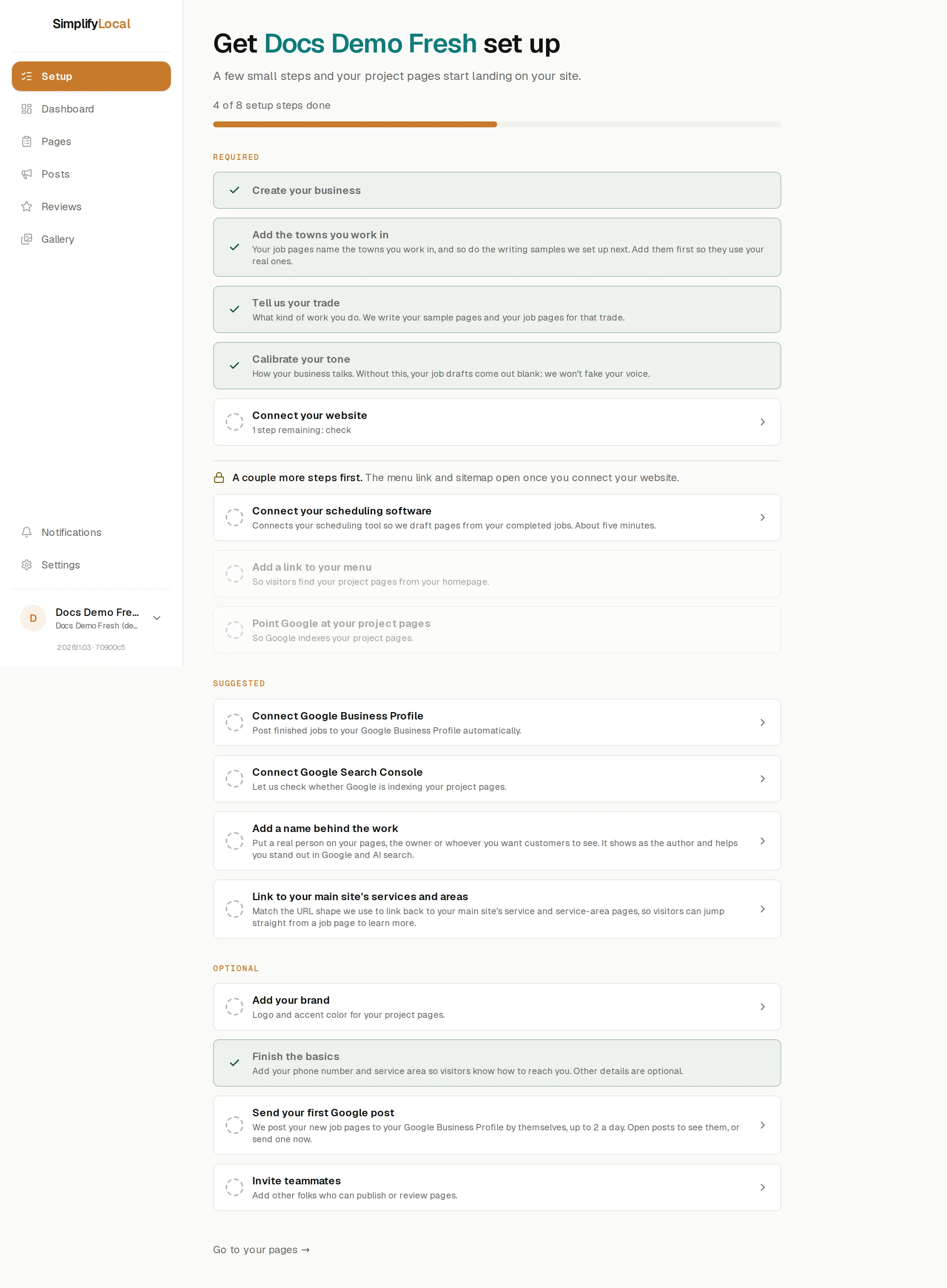
Setup is a checklist in the app, under Setup, and only admins see it (Roles). The Required section has eight steps and the progress bar counts them off. Most are yours; two or three belong to whoever looks after your website. The app walks you through them in this order and sends you to the next one after each save, so you can hand off to your web person at step 5 and pick up again at step 6.
Your steps
Section titled “Your steps”- Set your password and sign in. Your welcome email has a “Set your password” link.
- Create your business. Business name, city, state and billing email. This is checked off as soon as you submit it.
- Add the towns you work in. Your state, your main town, and anywhere else you work. Job pages name these towns, so add them before the next step.
- Tell us your trade. Pick it from the list, or type what you call it. See Trades we write for.
- Calibrate your tone. Pick the tone that sounds most like you and read a sample page written in it. Without this, no pages get written. You can fine-tune it any time in Settings (Voice calibration).
- Connect your scheduling software. Housecall Pro or Jobber. About five minutes. When you finish, we pull in your recent completed jobs (about a minute) and the write-ups and photos keep arriving over the next few hours. You don’t need to keep the page open.
After that, the Suggested and Optional sections are yours too, and none of them block your pages:
- Connect Google Business Profile and Google Search Console.
- Add a name behind the work (the person shown as the author on your pages).
- Add your brand (logo and accent colour), finish the basics (phone number and service area), and invite teammates.
The web person’s steps
Section titled “The web person’s steps”These need access to where your website is hosted. They can be done any time after step 2, and the app lets you carry on with your own steps while you wait.
- Connect your website. Paste one forwarding rule into your host, then press “I added it. Check now” in the app. About five minutes. Start at Before you start; the rule itself comes from the app, under Setup → Connect your website.
- Add a link to your menu. A link from your homepage to the new
/worksection, so visitors can find it. See Link the pages from your site. - Point Google at your project pages. One line in your site’s robots file so Google finds the pages. See Sitemap and robots.txt.
Steps 2 and 3 only open once step 1 is done.
When setup is done
Section titled “When setup is done”Pages start landing under Pages as jobs are completed in your scheduling tool. What happens from there is in How a job becomes a page.