
Disconnecting
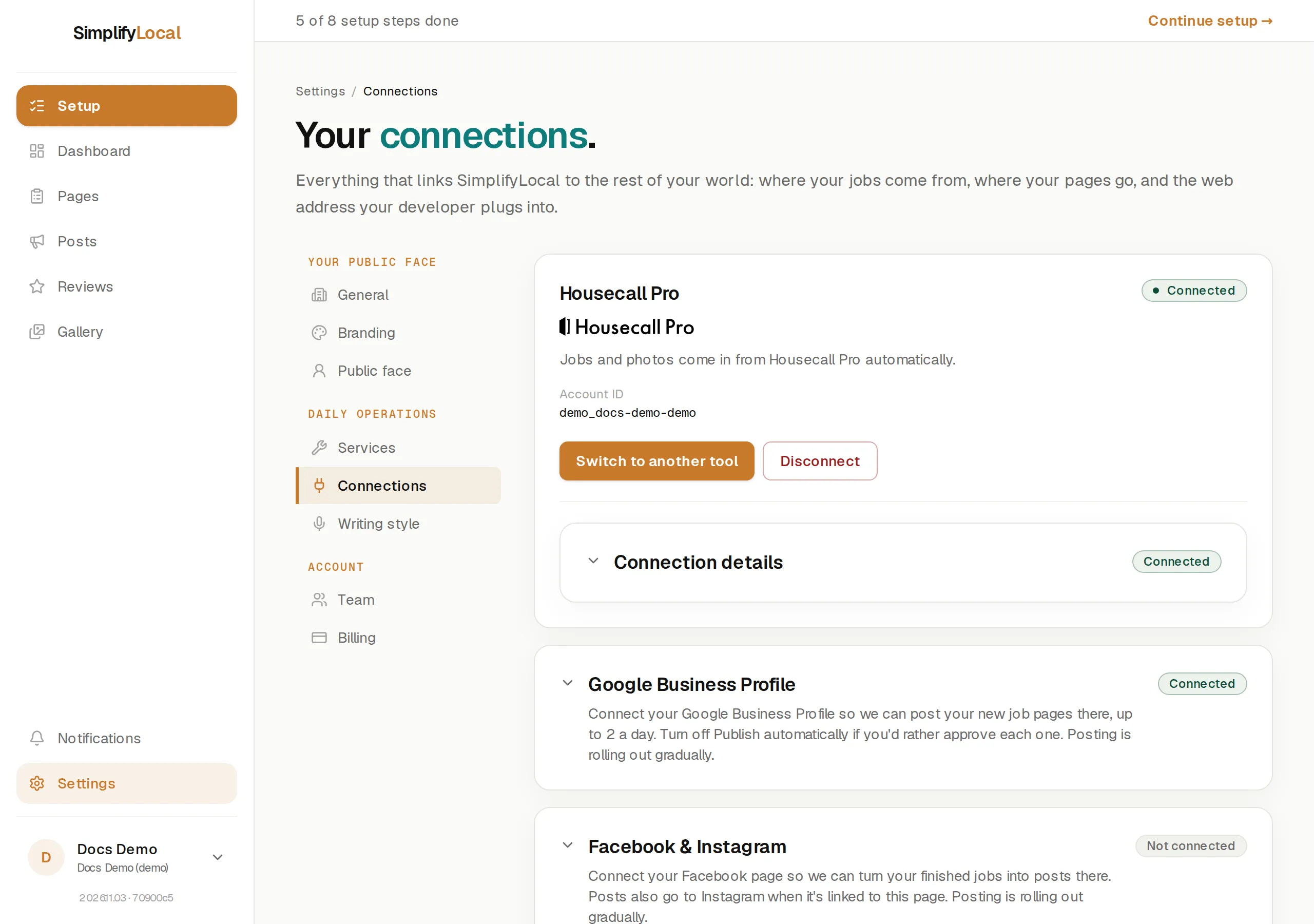
Go to Settings → Your connections. Your scheduling tool has its own card. Press Disconnect, then confirm in the window that opens:
Turn off Housecall Pro? Stop bringing in new jobs from Housecall Pro. Your existing pages stay put, and you can connect a tool again any time.
Only an admin can disconnect.
What stops
Section titled “What stops”- New finished jobs no longer reach us, so no new pages are drafted.
- Your Pages list shows a banner, “Your scheduling software is disconnected”, with a Reconnect button for admins.
- For Jobber, we also tell Jobber to remove SimplifyLocal’s access to your account. Uninstalling SimplifyLocal from inside Jobber disconnects it here too.
- For Housecall Pro, we clear the keys you gave us. We cannot remove anything on the Housecall Pro side: delete the webhook and the API key there yourself.
What stays
Section titled “What stays”- Published pages stay live on your website.
- Drafts, archived jobs, and photos already imported stay in your account.
- Your Google Business Profile and Search Console connections are separate and are not affected.
Connecting again
Section titled “Connecting again”The card now reads Not connected, with Connect a tool. Connect the same tool or a different one. Jobs you completed while disconnected are not pulled in by the first import unless they fall inside its window (the last 3 months, up to the newest 300); see What we import and when. Reconnecting the same Jobber account does not create duplicate pages.
If the connection dropped on its own, the card reads Reconnect needed instead: “Your connection stopped working. Reconnect to keep your finished jobs coming in.” Press Reconnect. For Housecall Pro that runs you back through the setup steps; for Jobber it is one sign-in.
To move to the other tool instead of leaving, use Switch to another tool on the card. The app connects the new tool first and helps you turn off the old one once it is ready.