
Why a page is held
A page that doesn’t go live by itself waits in Need Review or Ready to publish, and the row says why. Nothing here is a dead end: open the page, fix what the message names, and press Publish to site.
Need Review: the page needs something from you
Section titled “Need Review: the page needs something from you”“The tech’s notes were too short for us to write a page. Add a sentence about what you did.” Open the page and type a few lines about the job in the box at the top. We draft the page from your description.
“We need at least one photo before we can write this page. Upload photos in the edit screen.” Open the page, scroll to Photos, and use Add photos. Photos a tech adds in the scheduling tool after marking the job complete come through on their own, so a job that was just finished may fix itself within a day.
“We couldn’t get the photos for this job from your scheduling tool. They may have been removed there. Add photos in the edit screen to publish this page.” Add the photos directly on the page.
“Every photo on this job has a warning. Open the page to clear the warnings or remove the photos.” We leave a photo off the page when a face, license plate, or address may be visible, or when it looks blurry. Open each photo under Photos with issues and choose Clear warning or Add it anyway if it’s fine to show, or remove it. A page needs at least one photo without a warning.
“This page needs a bit more before it can go live. Open it to see what’s missing.” The Ready to publish panel beside the form shows which bar is short: the write-up or the photos.
“The write-up is too short to go live. Open it and add a few lines about the job, like what you found or how it turned out.” A page needs at least 150 words in the write-up. Write more, or use Refresh draft with AI after adding a sentence or two of context.
“We had trouble writing this one well. Give it a read before it goes live, and change anything that does not sound right.” The page can go live as soon as you say so. Under Before you publish this one, the editor lists what we noticed, one sentence each, so you can fix those lines or decide they’re fine.
“This looks like a job you already have from your old scheduling software. Take a look before publishing so the same job doesn’t show up twice on your site.” If it’s a different job, press It’s not a duplicate. If it’s the same job, archive it.
Ready to publish: the page is fine, but waits for you
Section titled “Ready to publish: the page is fine, but waits for you”These pages passed our checks and could go live, but something stopped them going live by themselves. The row’s note says which:
- “You’ve started working on this page, so it’s waiting for you to publish it.” Any edit you make takes the page out of the automatic queue, so we never publish a half-finished edit. Press Publish when you’re done.
- “This month’s included pages are used up, so it’s waiting for you to publish it.” See Billing. You can still publish it yourself; it counts as an extra page.
- “Publish automatically was turned off while this page waited to go live, so it’s waiting for you to publish it.” Turning the setting back on releases new pages only, not these.
- “This page goes live by itself once website setup is finished.” Finish connecting your website and the page publishes on its own.
- “We couldn’t finish checking this page”, “This page took too long to finish”, or “We couldn’t put this page live by itself”: the page is ready, we just couldn’t publish it on our own. Open it and press Publish.
Messages on the page itself
Section titled “Messages on the page itself”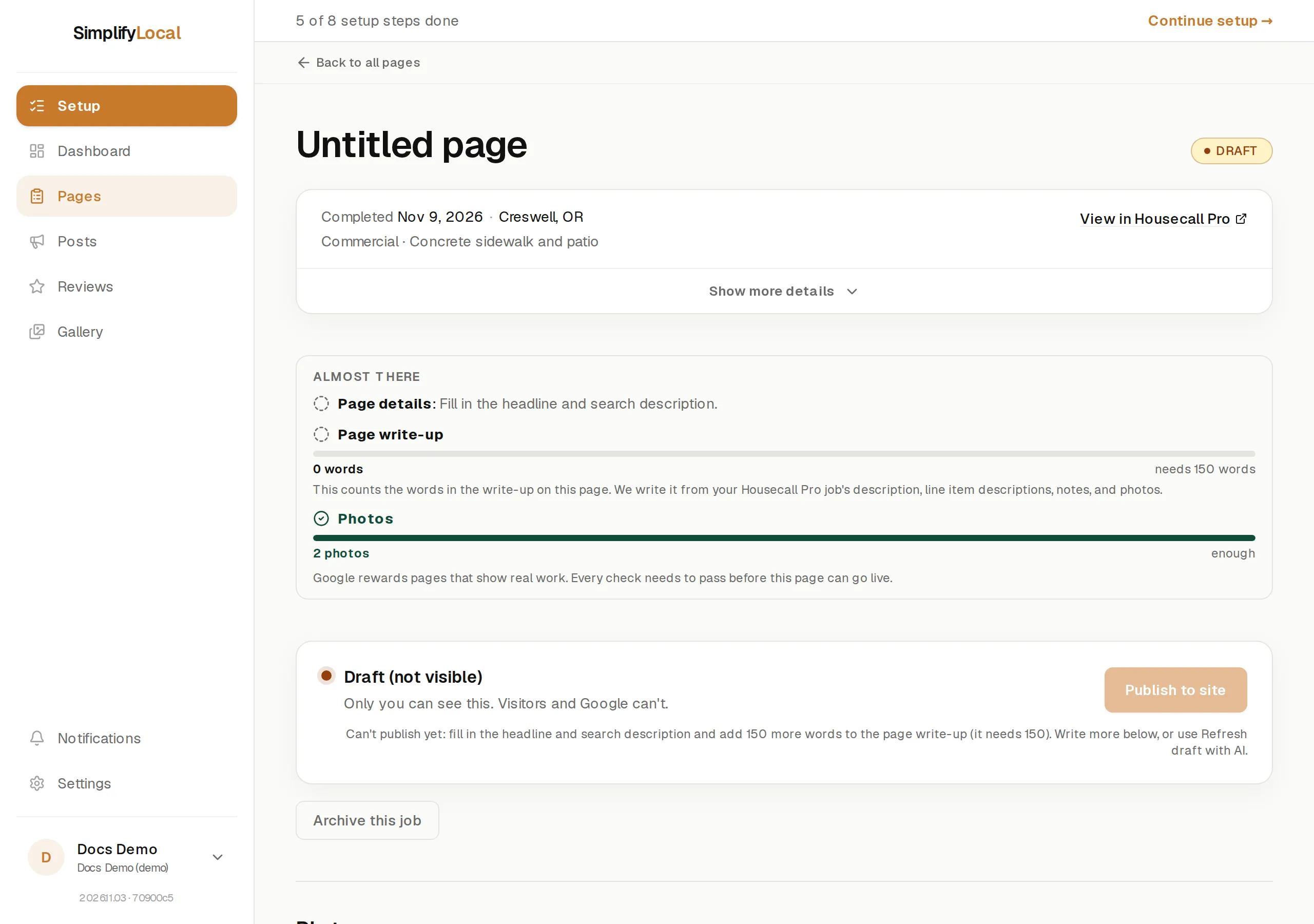
“Before publishing, please fill in the headline, search description, and web address.” The blank field carries a Needed to publish chip. Fill it in, or press the field’s regenerate button to have one written.
“Your write-up has 110 words, but Google needs at least 150 to treat the page as a real project record. Add about 40 more.” Add detail to the write-up.
“You’ve got … photos on this page. Add … more so the page shows real before-and-after work.” Drag another photo from your library onto the page. The photos bar in the Ready to publish panel shows how many are still needed.
“This write-up reads almost the same as your page “…” for this property. Add what was different about this visit, like what you found or what you changed, so each page stands on its own.“ A return visit to the same address needs its own story. Edit the write-up so it says what was different this time.
“Finish website setup before you can publish.” Publishing needs a connected website. An admin finishes this under Setup → Connect your website.
Pages that aren’t being written at all
Section titled “Pages that aren’t being written at all”If the Drafting section says writing is paused, the banner above it explains why: you’re out of AI credits for the month (they reset on the 1st), no voice sample has been set up yet (see Voice calibration), or your scheduling tool is disconnected (see Disconnecting). You can always open a draft and write the page yourself.