
Team members
A team is up to 5 people including you. Invite an office manager or a teammate to help with your pages. Only an admin can manage the team, under Settings → Team.
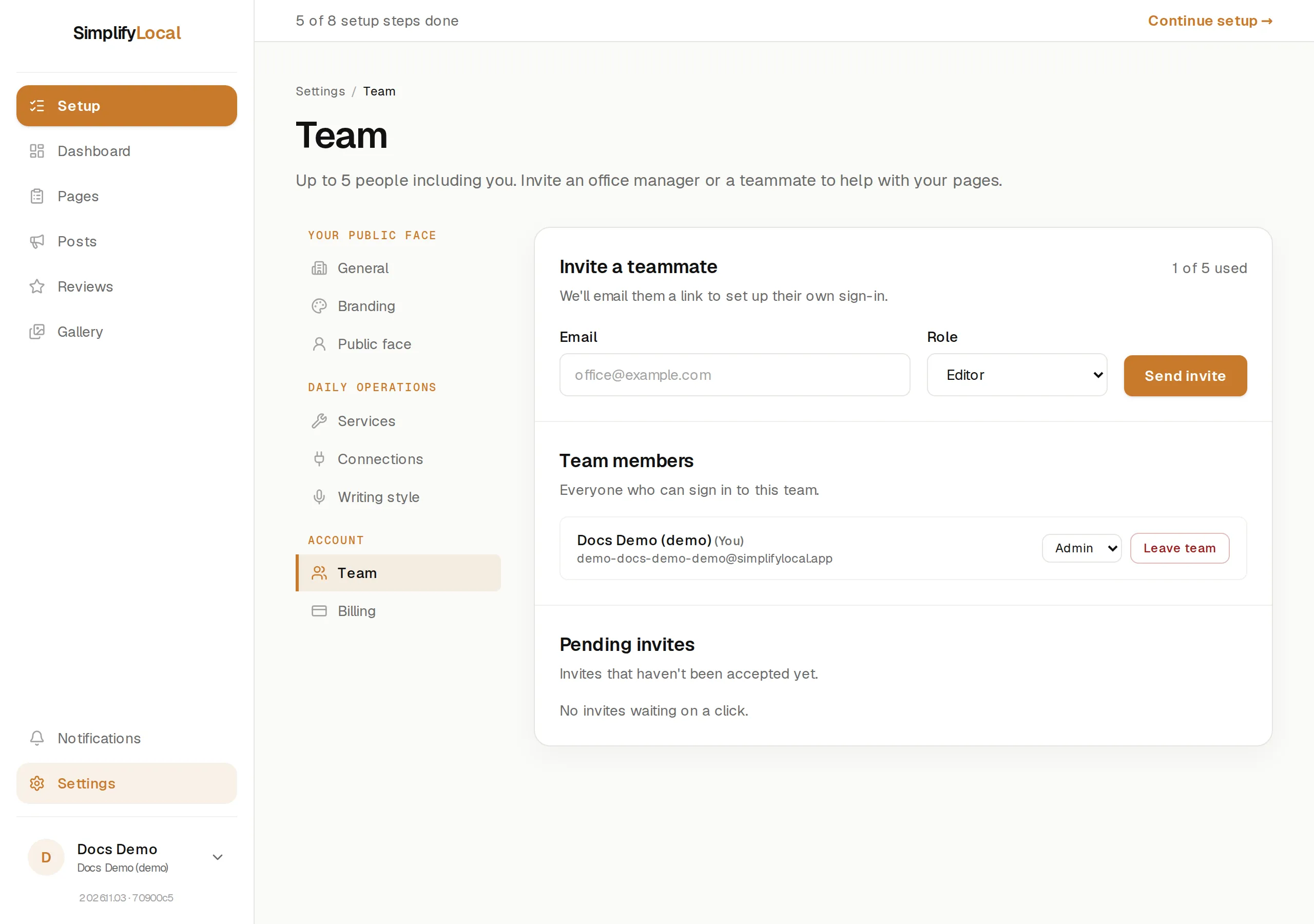
Invite someone
Section titled “Invite someone”- Under Invite a teammate, enter their email and pick a role: Admin, Editor or Viewer. See Roles for what each can do.
- Press Send invite. We email them a link to set up their own sign-in.
The invite sits under Pending invites until they accept. The counter next to the heading (“2 of 5 used”) counts members and pending invites together, so a pending invite takes a seat until it is accepted or revoked. At the cap the form says “You’re at the team cap. Revoke a pending invite or remove someone first.”
You can’t invite your own email, and a person with a pending invite can’t be invited twice: use Resend or Revoke on their row instead.
What the teammate does
Section titled “What the teammate does”They open the link, see “You’ve been invited to your business as role”, and set a password for that email. If they already have a SimplifyLocal sign-in under the same email, they sign in and press Accept and join. An invite sent to one email can’t be accepted from another; the page tells them to sign out and sign in with the right one.
Invite links expire. Resend sends a fresh link; the old one stops working. Revoke cancels the invite; a revoked link shows “Invite revoked” to whoever opens it.
Change a role
Section titled “Change a role”Under Team members, pick a new role from the dropdown on the person’s row. The change takes effect straight away.
Remove someone
Section titled “Remove someone”Press Remove on their row, then Remove teammate. They lose access immediately.
To leave a team yourself, press Leave team. You’ll lose access until someone invites you back.
The last admin
Section titled “The last admin”A team always keeps at least one admin. If you try to remove or demote the only admin, the page says “Promote another teammate to admin before removing or demoting the last admin.”