
Editing a page
Open any page from Pages. Admins and editors can change everything below; viewers see the same page without the controls.
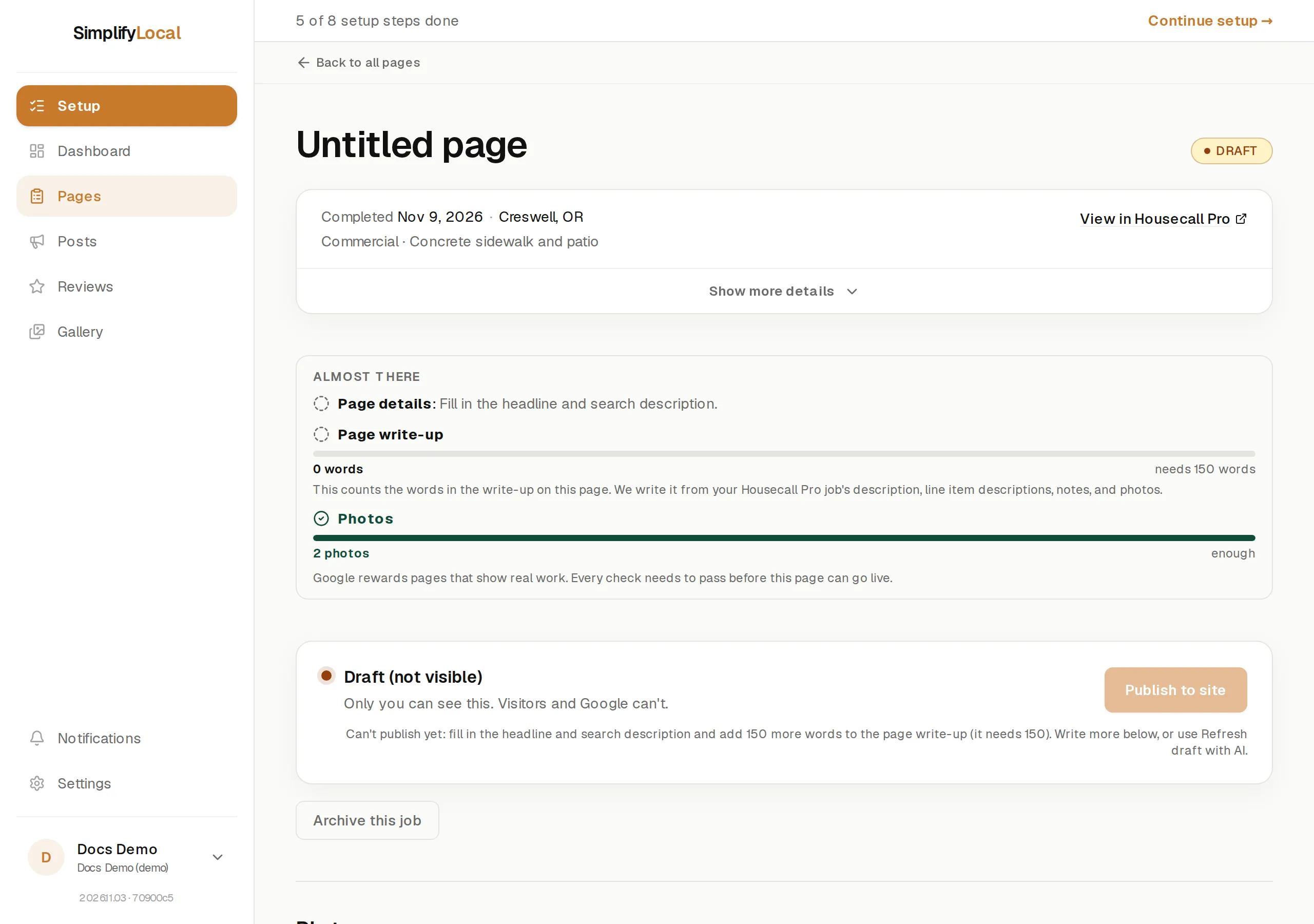
The text
Section titled “The text”- Headline. Short and concrete. Shows up first on the page and in search results. If it runs long, a note says Google may shorten how it shows; that’s fine, just put what you do and the town first.
- Write-up. What did you do? Specifics win: the surface, the size, what shape it was in, how you fixed it. Plain text is fine, or use the toolbar for headings, lists, quotes, and links. The counter under the editor shows the word count. The link tool can point to this service’s page, this area’s page, your work page, or any web address.
- Search description. One or two sentences that show up under the page title in Google. Aim for 120–160 characters.
- Service types. What kind of work was this? One visit can cover more than one service, so add every one that applies. We use these to write the page and to help the right customers find it on Google. When the job notes mention a service you don’t list yet, a nudge offers Add to my services.
Each text field has a regenerate button that rewrites just that field. Refresh draft with AI rewrites the headline, write-up, and search description from scratch; the Add context for the AI box lets you tell us something first (“Customer asked us to work around a new fence in the back…”). Each draft uses one AI credit; credits reset on the 1st of every month.
A page that is live is never rewritten by AI. Edit the text directly, or unpublish it and then refresh the draft.
Photos
Section titled “Photos”Photos are in three groups: On this page, Photos with issues, and In your library.
- Drag to reorder. The first photo is the Main photo and shows first. Open a photo and choose Make this the main photo to change it.
- Drag a library photo onto the page, or open it and press Add to page. Drag a page photo back to the library to take it off. At least one photo has to stay on the page.
- Group as before/after pairs two photos; they move together after that. Both need the same shape, both upright or both wide.
- Each photo has a description. Edit it, or press Write it for me.
- Add photos uploads from your computer (JPG, PNG, WebP, or HEIC). A photo that looks like one already on the job is skipped.
- Photos that came from your scheduling tool can’t be deleted here; take them off the page instead. Uploaded photos can be deleted for good with Remove from account.
See Photos for how photos arrive and how warnings work.
Web address
Section titled “Web address”The Web address field shows the page’s full address and the part you can change: lowercase letters, numbers, and dashes only. Open this page and Copy the web address sit beside it. Before publishing, the field notes This address goes live when you publish.
Two rules:
- An address already used by another page is refused: This web address is already used by another page. Pick a different one.
- A page that has been live needs a web address, because people may already have the link. You can change the address, but it can’t be blank.
Hide from search engines
Section titled “Hide from search engines”Turn this on and we’ll ask Google not to list this page in search results. The page stays live for anyone with the web address. Turning it on asks you to confirm; turning it off doesn’t. See Search engines.
Reviews
Section titled “Reviews”The Customer reviews section lets you put a real customer’s Google review on the page. See Reviews on pages.
When the job changes in your scheduling tool
Section titled “When the job changes in your scheduling tool”If details change for a job after its page went live (a corrected address, say), the page shows Your scheduling software has newer details for this job. We don’t change your live page on our own. Press Apply update or Dismiss.
Editing a page that was about to go live
Section titled “Editing a page that was about to go live”Any change you make to a page in Ready to publish takes it out of the automatic queue. It waits for you to press Publish to site, so a page never goes live mid-edit.
Archive and unpublish
Section titled “Archive and unpublish”- Archive this job sets a draft aside. Restore it from the Archived section any time.
- Unpublish takes a live page off your site. Visitors and Google will stop seeing it within a few minutes, and it goes back to a draft.